TUI
CyberStrike provides an interactive terminal user interface (TUI) for running security assessments with AI agents. Launch it by running cyberstrike in your project directory or specify a target path:
cyberstrikecyberstrike /path/to/targetVIDEO: tui-overview.mp4
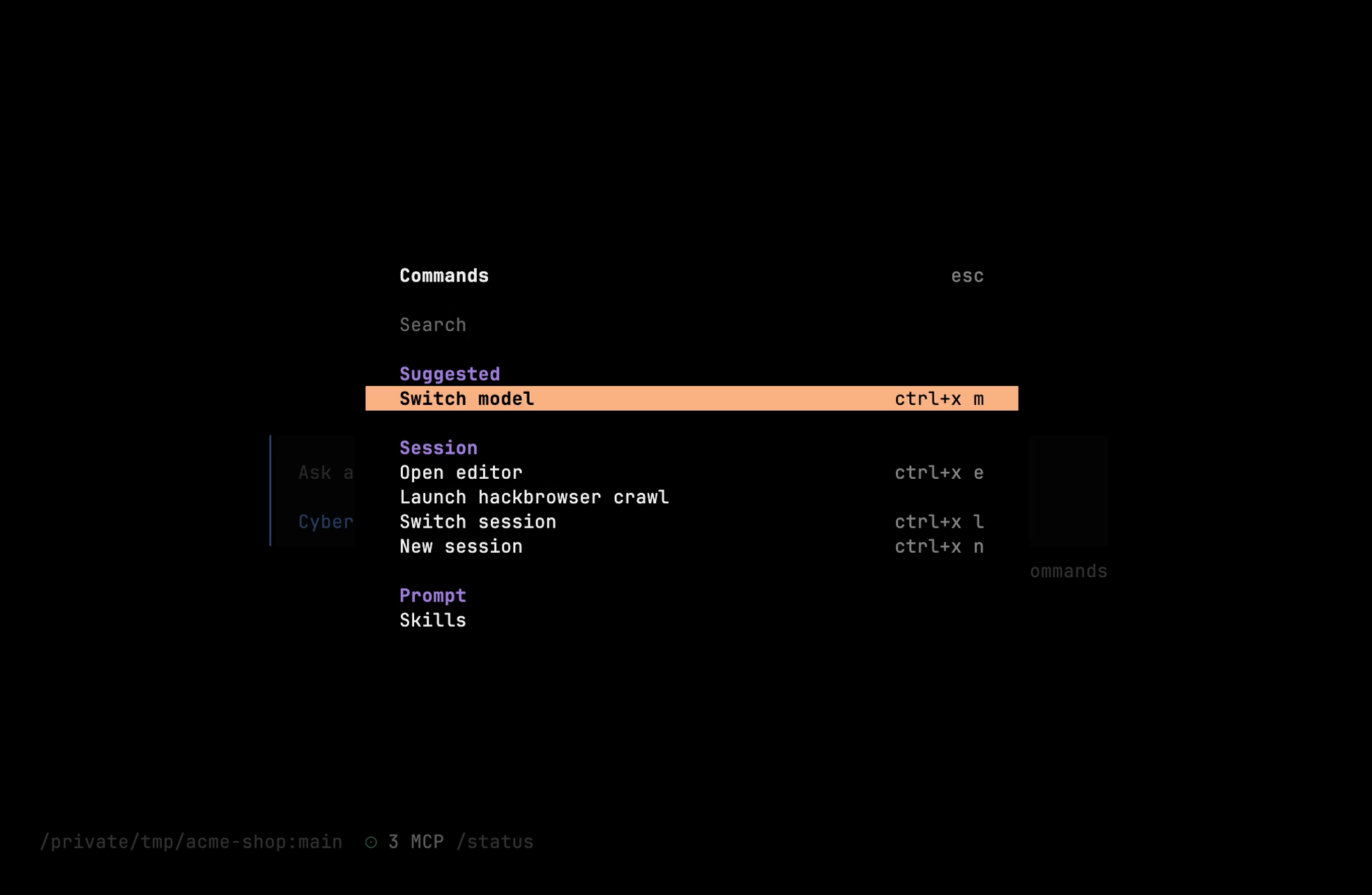
TUI launch, agent interaction, and real-time output (~15s)
File References
Use @ to fuzzy-search and reference files in your messages. The file content is automatically added to the conversation context.
How is auth handled in @src/api/auth.ts?Review @nginx.conf for misconfigurationsSCREENSHOT: tui-file-reference.png
Fuzzy file search with @ mention in the prompt
Shell Commands
Messages starting with ! execute shell commands directly. The command output becomes a tool result in the conversation.
!nmap -sV target.local!curl -I https://example.comVIDEO: tui-shell-command.mp4
Executing !nmap via shell shortcut with inline output (~8s)
Commands
Type / followed by a command name. Most commands have keybinds using ctrl+x as the default leader key.
| Command | Purpose | Keybind |
|---|---|---|
/connect | Add an AI provider and API keys | — |
/compact | Compact current session | ctrl+x c |
/details | Toggle tool execution details | ctrl+x d |
/editor | Open external editor for composing messages | ctrl+x e |
/exit | Exit CyberStrike | ctrl+x q |
/export | Export conversation to Markdown | ctrl+x x |
/help | Show help dialog | ctrl+x h |
/init | Create or update AGENTS.md file | ctrl+x i |
/models | List available models | ctrl+x m |
/new | Start new session | ctrl+x n |
/redo | Redo previously undone message; restores file changes via Git | ctrl+x r |
/sessions | List and switch sessions | ctrl+x l |
/share | Share current session | ctrl+x s |
/themes | List available themes | ctrl+x t |
/thinking | Toggle visibility of thinking/reasoning blocks | — |
/undo | Undo last message; removes file changes via Git | ctrl+x u |
Tip
Undo / Redo: Any file changes are also restored via Git when using /undo and /redo. Your project must be a Git repository for these commands to work.
Editor Setup
Use the EDITOR environment variable for /editor and /export commands.
export EDITOR=nanoexport EDITOR="code --wait"$env:EDITOR = "notepad"$env:EDITOR = "code --wait"set EDITOR=notepadset EDITOR=code --waitInfo
GUI editors like VS Code require the --wait flag so CyberStrike can wait for you to finish editing.
SCREENSHOT: tui-commands.png
Slash command menu showing available commands
Configure
Customize TUI behavior via tui.json (or tui.jsonc), separate from cyberstrike.json:
{ "$schema": "https://cyberstrike.io/tui.json", "theme": "cyberstrike", "keybinds": { "leader": "ctrl+x" }, "scroll_speed": 3, "scroll_acceleration": { "enabled": true }, "diff_style": "auto"}Configuration Options
| Option | Description | Default |
|---|---|---|
theme | UI theme selection | cyberstrike |
keybinds.leader | Leader key for shortcuts | ctrl+x |
scroll_speed | Scroll velocity (min: 0.001) | 3 |
scroll_acceleration.enabled | macOS-style scroll acceleration | false |
diff_style | "auto" adapts to width, "stacked" single-column | auto |
Use the CYBERSTRIKE_TUI_CONFIG environment variable to specify a custom config path.
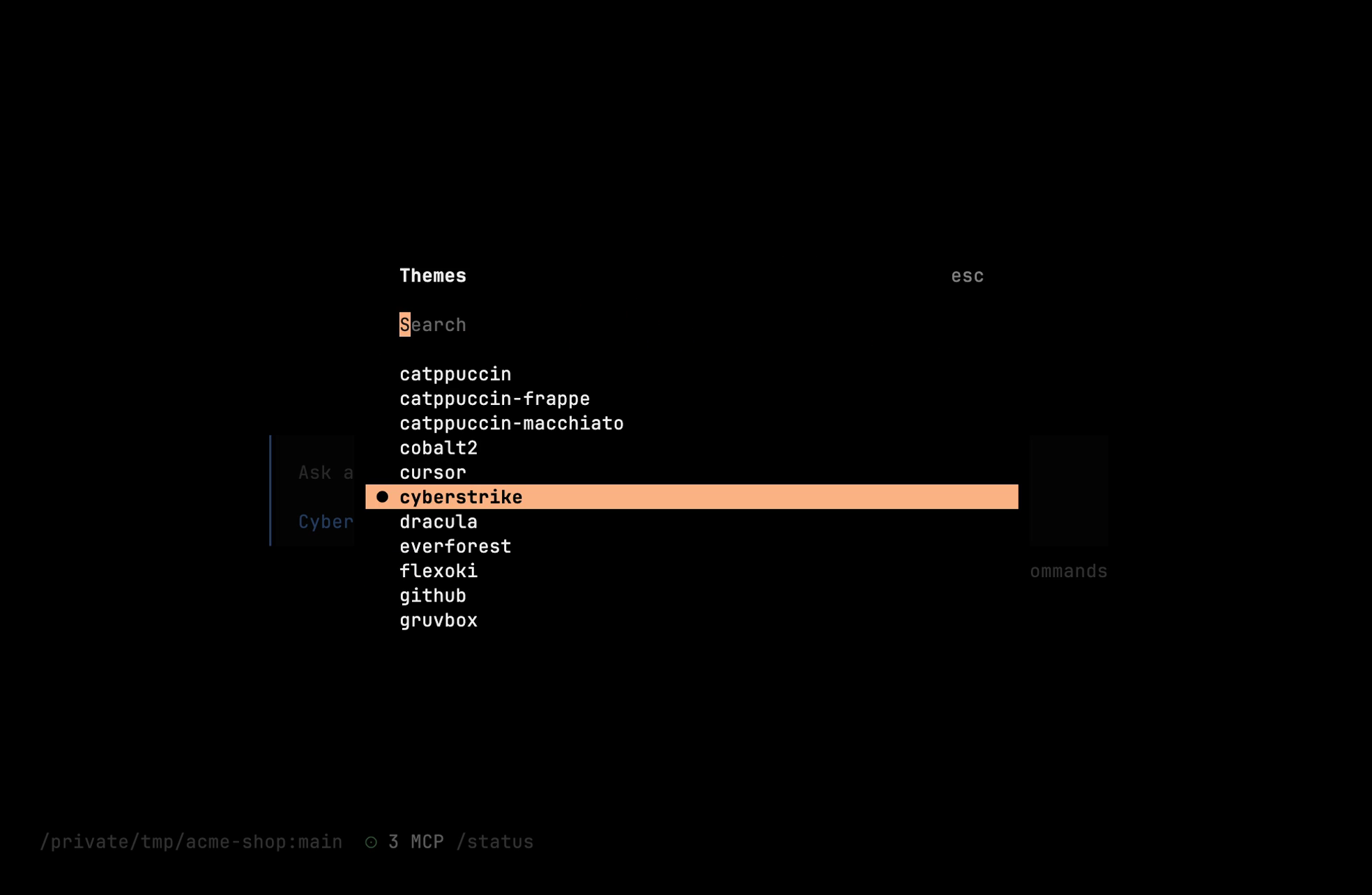
SCREENSHOT: tui-theme-selector.png
Theme picker with preview
Customization
Customize the TUI through the command palette (ctrl+x h or /help). Settings persist across restarts.
Username Display
Toggle username visibility in chat messages via the command palette. Search for “username” or “hide username”. Settings persist automatically.