Getting Started
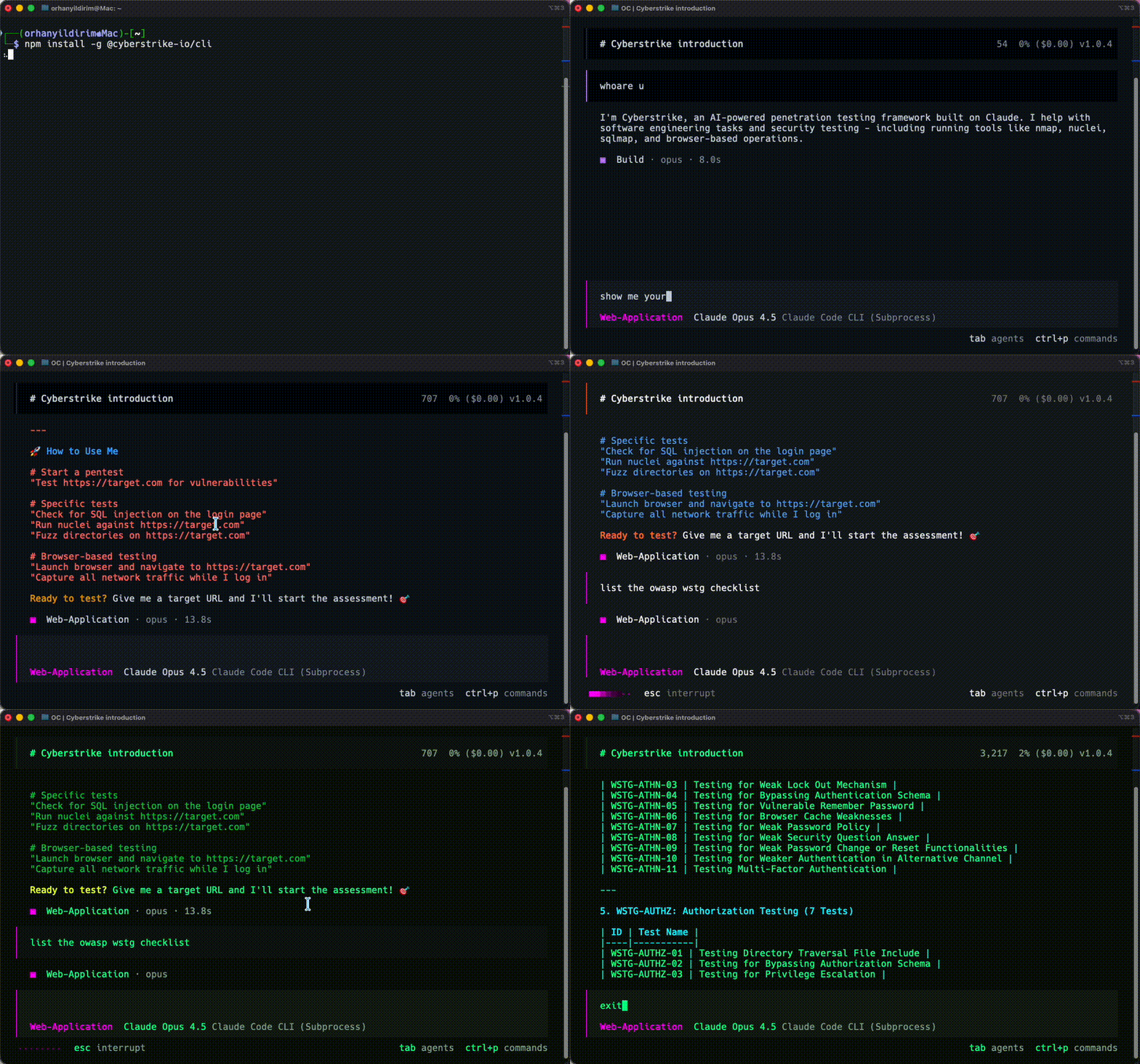
Cyberstrike is an AI-powered penetration testing agent that automates security assessments. This guide covers installation, authentication, and running your first scan.
System Requirements
Before installing Cyberstrike, verify your system meets these requirements:
| Requirement | Minimum | Recommended |
|---|---|---|
| Operating System | macOS 12+, Ubuntu 20.04+, Windows 10+ | macOS 14+, Ubuntu 22.04+ |
| RAM | 4 GB | 8 GB |
| Disk Space | 500 MB | 2 GB |
| Node.js | 18.0+ | 20.0+ |
Installing Cyberstrike
Choose your preferred installation method based on your operating system and package manager.
npm (Recommended)
- Open your terminal
- Run the installation command:
npm install -g @cyberstrike-io/cyberstrike@latest- Verify the installation:
cyberstrike --version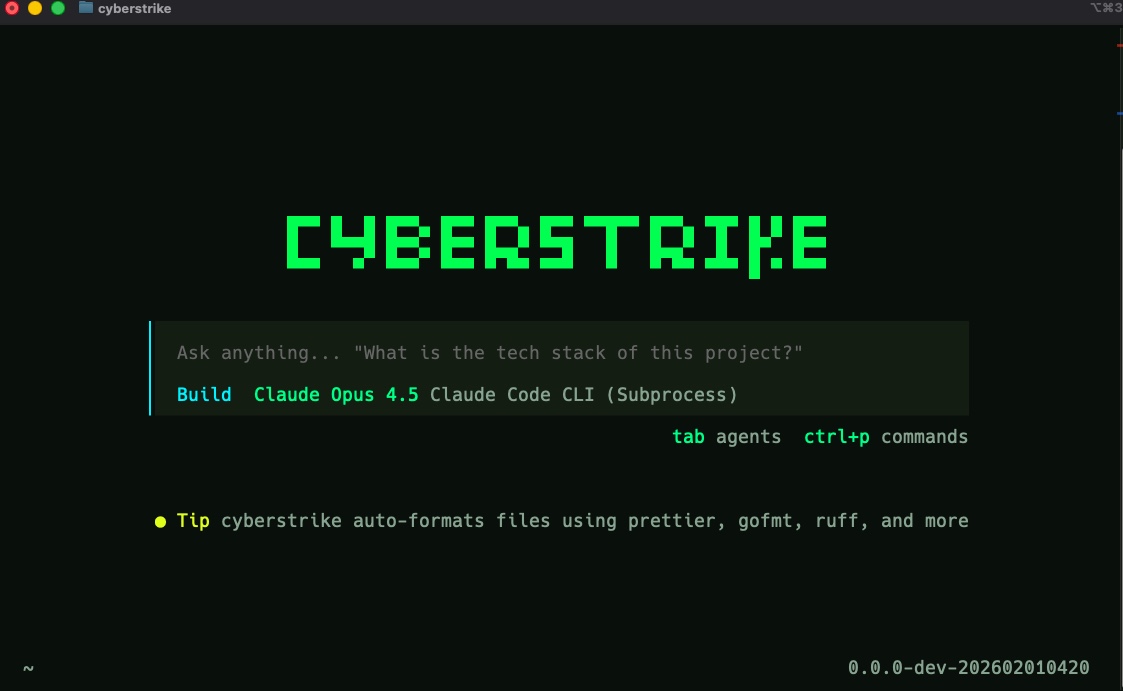
Bun Coming Soon
Bun support is not yet available.
Homebrew (macOS) Coming Soon
Homebrew support is not yet available.
curl (Linux/macOS)
Run the installation script:
curl -fsSL https://cyberstrike.io/install.sh | bashiwr (Windows/Powershell)
Run the installation script:
iwr -useb https://cyberstrike.io/install.ps1 | iexCaution
Review scripts before executing them. The installation script is available at github.com/CyberStrikeus/CyberStrike.
Docker
Caution
Docker image is coming soon. For now, use npm or curl.
Authenticating with an AI Provider
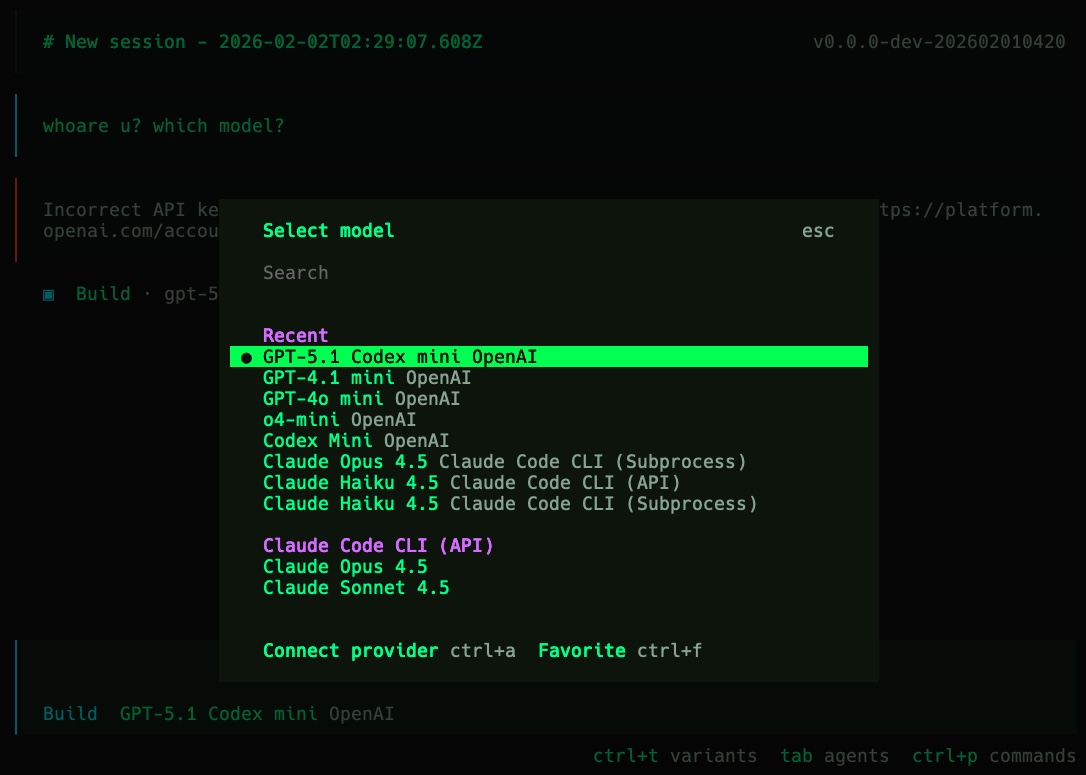
Cyberstrike requires an AI provider to function. The following providers are supported:
| Provider | Free Tier | API Key Required |
|---|---|---|
| OpenRouter | Yes | Yes |
| Anthropic | No | Yes |
| OpenAI | No | Yes |
| Google Gemini | Yes | Yes |
| Ollama | Yes (Local) | No |
Setting Up Authentication
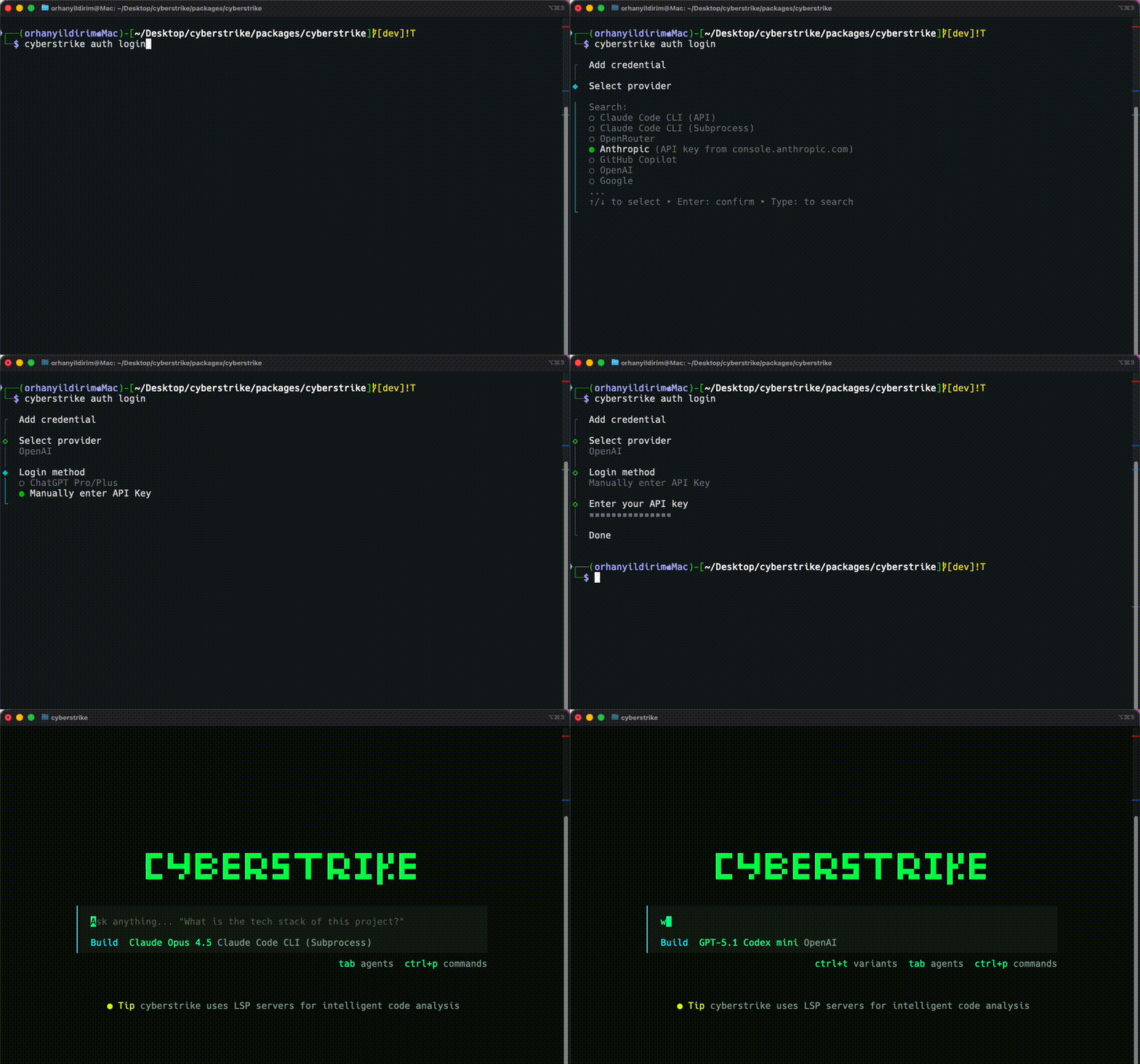
- Run the authentication command:
cyberstrike auth login- Select your provider from the list:
? Select provider❯ OpenRouter (free tier available) Anthropic (API key from console.anthropic.com) OpenAI (ChatGPT Plus/Pro or API key) Google (API key from ai.google.dev) Ollama (local models) OtherEnter your API key when prompted
Verify your credentials:
cyberstrike auth listUsing Environment Variables
Set API keys as environment variables instead of storing them:
# Anthropicexport ANTHROPIC_API_KEY="sk-ant-..."
# OpenAIexport OPENAI_API_KEY="sk-..."
# Googleexport GOOGLE_API_KEY="AI..."
# OpenRouterexport OPENROUTER_API_KEY="sk-or-..."
Add these to your shell profile (~/.bashrc, ~/.zshrc) for persistence.
Running Your First Scan
Starting Interactive Mode
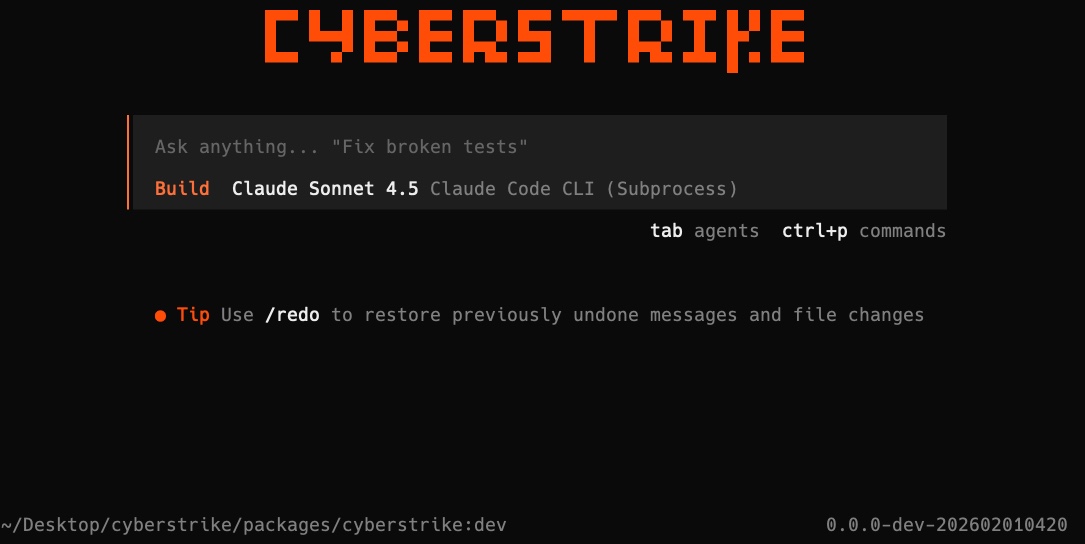
Launch Cyberstrike in your target directory:
cd /path/to/targetcyberstrikeThe terminal user interface (TUI) appears with:
- Input prompt at the bottom
- Response area in the center
- Status bar showing model and token usage
Executing a Quick Scan
Run a single command without entering interactive mode:
cyberstrike run "perform reconnaissance on example.com"Selecting a Security Agent
Cyberstrike includes specialized agents for different assessment types:
# Web application securitycyberstrike --agent web-application
# Cloud infrastructurecyberstrike --agent cloud-security
# Network penetration testingcyberstrike --agent internal-network
# Bug bounty reconnaissancecyberstrike --agent bug-hunter
Basic Configuration
Create a cyberstrike.json file in your project directory to set default options:
{ "$schema": "https://cyberstrike.io/config.json", "model": "anthropic/claude-sonnet-4-20250514", "default_agent": "web-application"}When you run cyberstrike in this directory, it automatically loads these settings. The example above:
- Uses Claude Sonnet as the default AI model
- Starts with the web-application security agent
This eliminates the need to specify --model and --agent flags every time.
Configuration Hierarchy
Cyberstrike loads configuration from multiple sources in this order:
- Command line arguments (highest priority)
- Environment variables
- Project config (
cyberstrike.json) - User config (
~/.config/cyberstrike/cyberstrike.json) - Default values (lowest priority)
For detailed configuration options, see the Configuration Reference.
Keyboard Shortcuts
Learn these shortcuts for efficient navigation:
| Shortcut | Action |
|---|---|
Enter | Submit message |
Ctrl+C | Cancel current operation |
Ctrl+D | Exit Cyberstrike |
Ctrl+L | Clear screen |
Tab | Autocomplete commands |
↑ / ↓ | Navigate history |
Next Steps
Continue learning with these guides:
- Configuration Reference - Customize Cyberstrike settings
- AI Providers - Configure your preferred AI provider
- Security Agents - Learn about specialized agents
- CLI Commands - Complete command reference
Tip
Join the community at Discord for support and updates.